I used to maintain a .bashrc file with 200+ aliases I copied from various dotfiles repositories. I used maybe five of them. The rest were performance theater - shortcuts for commands I ran once a month, if ever.
Good aliases remove friction from paths you actually walk multiple times per day. These are the ones that survived my periodic purges, plus a few functions that solve specific annoyances I kept running into.
Navigation Shortcuts
The .. family is worth mentioning:
# filename: ~/.bashrc
alias ..='cd ..'
alias ...='cd ../..'
alias ....='cd ../../..'# filename: ~/.bashrc
alias ..='cd ..'
alias ...='cd ../..'
alias ....='cd ../../..'
I also keep this for jumping back to the last directory:
# filename: ~/.bashrc
alias -='cd -'# filename: ~/.bashrc
alias -='cd -'
I used to alias cd to something fancier, like zoxide or autojump. The problem is that cd is muscle memory. Every time I typed cd on a remote server where my aliases don't exist, I felt the cognitive overhead. Now I leave cd alone and use z explicitly when I need fuzzy directory jumping.
Git Shortcuts That Don't Hide Too Much
I write a lot of Git commands. These aliases remove typing without obscuring what's happening:
# filename: ~/.bashrc
alias gs='git status'
alias ga='git add'
alias gc='git commit'
alias gp='git push'
alias gl='git log --oneline --graph -20'
alias gd='git diff'# filename: ~/.bashrc
alias gs='git status'
alias ga='git add'
alias gc='git commit'
alias gp='git push'
alias gl='git log --oneline --graph -20'
alias gd='git diff'
I tried gcm for git commit -m but dropped it because the message argument became awkward. Honestly, the sweet spot is shortening the command itself while keeping the rest explicit.
The gl alias gives me a concise view of recent commits without opening a GUI. The graph visualization makes branch structure visible:
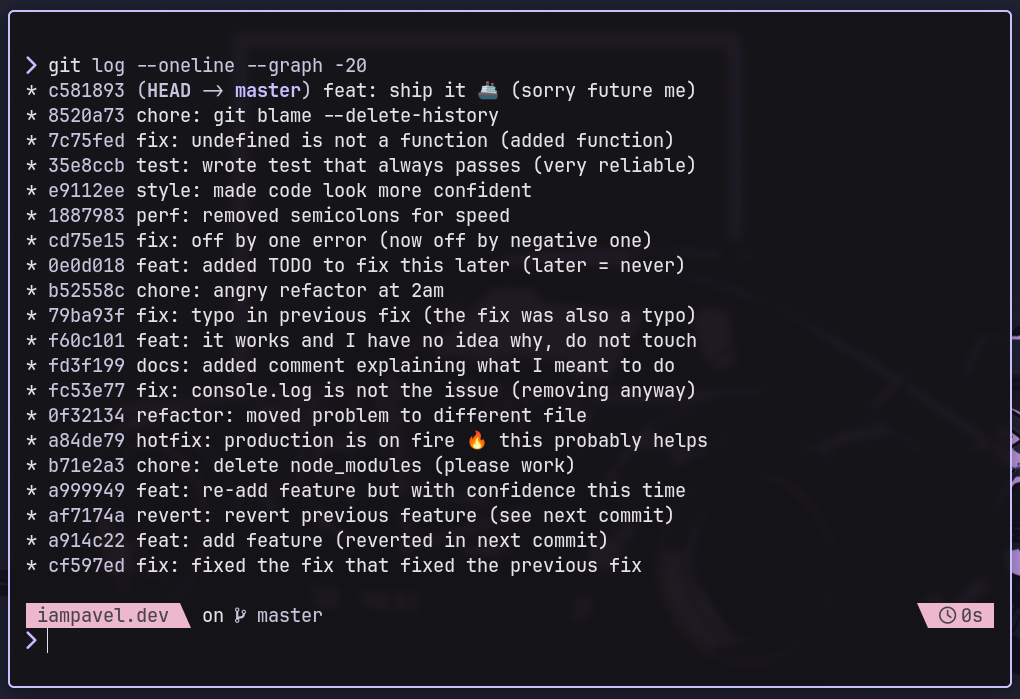
* 4a2b8c3 (HEAD -> main) Fix login validation
* 9c1e4d2 Add user profile page
| * 7f3a9b2 (feature/oauth) Implement OAuth flow
|/
* 3d8c7a1 Update dependencies* 4a2b8c3 (HEAD -> main) Fix login validation
* 9c1e4d2 Add user profile page
| * 7f3a9b2 (feature/oauth) Implement OAuth flow
|/
* 3d8c7a1 Update dependencies
History Grepping
This is the alias I use most often:
# filename: ~/.bashrc
alias hg='history | grep'# filename: ~/.bashrc
alias hg='history | grep'
When I know I ran a command with "docker" in it three hours ago but can't recall the exact flags:
hg dockerhg docker
I get numbered history entries I can then execute with !42 or similar.
Safety Nets
These aliases have prevented me from making stupid mistakes:
# filename: ~/.bashrc
alias cp='cp -i'
alias mv='mv -i'
alias rm='rm -i'# filename: ~/.bashrc
alias cp='cp -i'
alias mv='mv -i'
alias rm='rm -i'
The -i flag prompts before overwriting. Yes, it's annoying when you're deliberately moving files around. But I accidentally overwrote an important file exactly once, and that was enough to keep these enabled permanently.
What I Do With ls
I have strong opinions about ls output. The default is nearly useless for modern development:
# filename: ~/.bashrc
alias ls='ls --color=auto -F'
alias ll='ls -la'
alias la='ls -A'# filename: ~/.bashrc
alias ls='ls --color=auto -F'
alias ll='ls -la'
alias la='ls -A'
The -F flag appends indicators: / for directories, * for executables, @ for symlinks. You can see file types at a glance without parsing colors.
What actually annoyed me was ls sorting. I work with projects that generate numbered migration files, log files with timestamps, and semantic version directories. The default alphabetical sort puts 10 before 2. I added:
# filename: ~/.bashrc
alias lsn='ls -lv'  # natural sort (1, 2, 10 instead of 1, 10, 2)# filename: ~/.bashrc
alias lsn='ls -lv'  # natural sort (1, 2, 10 instead of 1, 10, 2)
Quick Config Edits
I edit my shell configuration frequently enough that it deserves an alias:
# filename: ~/.bashrc
alias bashconfig='${EDITOR:-vim} ~/.bashrc'
alias zshconfig='${EDITOR:-vim} ~/.zshrc'
alias reload='source ~/.bashrc'# filename: ~/.bashrc
alias bashconfig='${EDITOR:-vim} ~/.bashrc'
alias zshconfig='${EDITOR:-vim} ~/.zshrc'
alias reload='source ~/.bashrc'
The ${EDITOR:-vim} pattern uses whatever editor you've set, falling back to vim if you haven't configured one. This makes the alias portable across machines where I might have different editor preferences.
Process Management
Finding processes by name:
# filename: ~/.bashrc
alias pg='ps aux | grep -v grep | grep -i'# filename: ~/.bashrc
alias pg='ps aux | grep -v grep | grep -i'
Usage: pg node shows all Node.js processes without the grep process itself cluttering the output.
I also keep this for when I need to free up a port that's being held by a zombie process:
# filename: ~/.bashrc
alias port='netstat -tuln | grep'# filename: ~/.bashrc
alias port='netstat -tuln | grep'
The Tar Problem
I can never remember the correct order of tar flags. This alias handles the most common case:
# filename: ~/.bashrc
alias untar='tar -xvf'# filename: ~/.bashrc
alias untar='tar -xvf'
For creating archives, I use a function instead of an alias because I need to specify the output name:
# filename: ~/.bashrc
tardir() {
    tar -czf "${1%/}.tar.gz" "$1"
}# filename: ~/.bashrc
tardir() {
    tar -czf "${1%/}.tar.gz" "$1"
}
Process Substitution Tricks
Bash's process substitution <() and >() lets you treat command output as files. This opens up some useful patterns:
# Compare directory listings without temp files
diff <(ls dir1) <(ls dir2)

# Process command output with a tool that expects files
comm -12 <(sort file1.txt) <(sort file2.txt)

# Write to multiple places: tee with process substitution
cat file.txt | tee >(wc -l > linecount.txt) | grep "pattern"

# Use process substitution with while loops (avoids subshell issues)
while read line; do
    echo "Processing: $line"
done < <(cat file.txt)# Compare directory listings without temp files
diff <(ls dir1) <(ls dir2)

# Process command output with a tool that expects files
comm -12 <(sort file1.txt) <(sort file2.txt)

# Write to multiple places: tee with process substitution
cat file.txt | tee >(wc -l > linecount.txt) | grep "pattern"

# Use process substitution with while loops (avoids subshell issues)
while read line; do
    echo "Processing: $line"
done < <(cat file.txt)
Process substitution creates a temporary file descriptor that you can read from or write to. The <(command) syntax is for reading - it substitutes the output of a command as a file argument. The >(command) syntax is for writing - data sent to that "file" gets piped into the command.
I use <() most often with diff when I want to compare the output of two commands without creating temporary files. The >(...) syntax is less common in my workflow, but when you need to send the same data to multiple places, tee >(...) is cleaner than managing multiple pipes.
Functions Worth Defining
Aliases can't take arguments. For anything more complex, use functions:
# filename: ~/.bashrc
# Create a directory and cd into it
mkcd() {
    mkdir -p "$1" && cd "$1"
}

# Extract any archive without remembering flags
extract() {
    if [ -f "$1" ]; then
        case "$1" in
            *.tar.bz2) tar -xjf "$1" ;;
            *.tar.gz)  tar -xzf "$1" ;;
            *.tar.xz)  tar -xJf "$1" ;;
            *.bz2)     bunzip2 "$1" ;;
            *.rar)     unrar x "$1" ;;
            *.gz)      gunzip "$1" ;;
            *.tar)     tar -xf "$1" ;;
            *.tbz2)    tar -xjf "$1" ;;
            *.tgz)     tar -xzf "$1" ;;
            *.zip)     unzip "$1" ;;
            *.Z)       uncompress "$1" ;;
            *.7z)      7z x "$1" ;;
            *)         echo "Unknown archive: $1" ;;
        esac
    else
        echo "'$1' is not a valid file"
    fi
}

# Find and edit files with fuzzy matching
fe() {
    local files
    IFS=$'\n' files=($(fzf --query="$1" --multi --select-1 --exit-0))
    [[ -n "$files" ]] && ${EDITOR:-vim} "${files[@]}"
}

# Quick HTTP server with optional port
serve() {
    local port="${1:-8000}"
    python3 -m http.server "$port"
}

# Create a backup of a file with timestamp
backup() {
    cp "$1" "${1}.$(date +%Y%m%d_%H%M%S).bak"
}# filename: ~/.bashrc
# Create a directory and cd into it
mkcd() {
    mkdir -p "$1" && cd "$1"
}

# Extract any archive without remembering flags
extract() {
    if [ -f "$1" ]; then
        case "$1" in
            *.tar.bz2) tar -xjf "$1" ;;
            *.tar.gz)  tar -xzf "$1" ;;
            *.tar.xz)  tar -xJf "$1" ;;
            *.bz2)     bunzip2 "$1" ;;
            *.rar)     unrar x "$1" ;;
            *.gz)      gunzip "$1" ;;
            *.tar)     tar -xf "$1" ;;
            *.tbz2)    tar -xjf "$1" ;;
            *.tgz)     tar -xzf "$1" ;;
            *.zip)     unzip "$1" ;;
            *.Z)       uncompress "$1" ;;
            *.7z)      7z x "$1" ;;
            *)         echo "Unknown archive: $1" ;;
        esac
    else
        echo "'$1' is not a valid file"
    fi
}

# Find and edit files with fuzzy matching
fe() {
    local files
    IFS=$'\n' files=($(fzf --query="$1" --multi --select-1 --exit-0))
    [[ -n "$files" ]] && ${EDITOR:-vim} "${files[@]}"
}

# Quick HTTP server with optional port
serve() {
    local port="${1:-8000}"
    python3 -m http.server "$port"
}

# Create a backup of a file with timestamp
backup() {
    cp "$1" "${1}.$(date +%Y%m%d_%H%M%S).bak"
}
I use the extract function most. It handles whatever archive format I throw at it without me needing to recall whether it's tar -xzf or tar -xjf or unzip.
FZF Integration
If you use fzf, these functions become incredibly useful:
# filename: ~/.bashrc
# Kill processes with fuzzy search
fkill() {
    local pid
    pid=$(ps -ef | sed 1d | fzf -m | awk '{print $2}')

    if [ -n "$pid" ]; then
        echo "Killing $pid..."
        echo "$pid" | xargs kill -9
    fi
}

# Checkout git branches with fuzzy search
fbr() {
    local branches branch
    branches=$(git branch -a | grep -v HEAD) &&
    branch=$(echo "$branches" | fzf) &&
    git checkout "$(echo "$branch" | sed 's/.* //' | sed 's#remotes/[^/]*/##')"
}# filename: ~/.bashrc
# Kill processes with fuzzy search
fkill() {
    local pid
    pid=$(ps -ef | sed 1d | fzf -m | awk '{print $2}')

    if [ -n "$pid" ]; then
        echo "Killing $pid..."
        echo "$pid" | xargs kill -9
    fi
}

# Checkout git branches with fuzzy search
fbr() {
    local branches branch
    branches=$(git branch -a | grep -v HEAD) &&
    branch=$(echo "$branches" | fzf) &&
    git checkout "$(echo "$branch" | sed 's/.* //' | sed 's#remotes/[^/]*/##')"
}
The fkill function replaced my pgrep | xargs kill workflow entirely. Type fkill, fuzzy search for the process, hit enter - done.
One-Liners I Keep in History
Some things aren't worth aliasing but are worth having in your history:
# Find large files
du -h --max-depth=1 | sort -h

# Watch a file for changes (useful for logs)
watch -n 1 'tail -20 /var/log/nginx/error.log'

# Create a quick timestamp
date +%Y%m%d_%H%M%S

# Find empty directories
find . -type d -empty

# Rename with substitution (requires renameutils)
qmv -f do *# Find large files
du -h --max-depth=1 | sort -h

# Watch a file for changes (useful for logs)
watch -n 1 'tail -20 /var/log/nginx/error.log'

# Create a quick timestamp
date +%Y%m%d_%H%M%S

# Find empty directories
find . -type d -empty

# Rename with substitution (requires renameutils)
qmv -f do *
Tmux Functions That Actually Help
I used to type tmux attach and get that annoying "no sessions" error. Then I'd create one, forget the name, and end up with five sessions called 0, 1, 2, 3, and 4. These functions fixed that:
# filename: ~/.bashrc
# Attach to existing session or create new one
ta() {
    if [ -z "$1" ]; then
        # No argument - attach to most recent or create default
        tmux new-session -A -s main
    else
        # Attach to named session or create it
        tmux new-session -A -s "$1"
    fi
}

# List sessions with fuzzy select to attach
tl() {
    local session
    session=$(tmux list-sessions -F "#S" 2>/dev/null | fzf --select-1 --exit-0)
    [ -n "$session" ] && tmux attach -t "$session"
}

# Kill a session by name
tk() {
    if [ -z "$1" ]; then
        local session
        session=$(tmux list-sessions -F "#S" 2>/dev/null | fzf -m)
        [ -n "$session" ] && tmux kill-session -t "$session"
    else
        tmux kill-session -t "$1"
    fi
}

# Create a new session with current directory name
tn() {
    local session_name="${1:-$(basename "$PWD")}"
    tmux new-session -d -s "$session_name" 2>/dev/null || true
    tmux attach -t "$session_name"
}# filename: ~/.bashrc
# Attach to existing session or create new one
ta() {
    if [ -z "$1" ]; then
        # No argument - attach to most recent or create default
        tmux new-session -A -s main
    else
        # Attach to named session or create it
        tmux new-session -A -s "$1"
    fi
}

# List sessions with fuzzy select to attach
tl() {
    local session
    session=$(tmux list-sessions -F "#S" 2>/dev/null | fzf --select-1 --exit-0)
    [ -n "$session" ] && tmux attach -t "$session"
}

# Kill a session by name
tk() {
    if [ -z "$1" ]; then
        local session
        session=$(tmux list-sessions -F "#S" 2>/dev/null | fzf -m)
        [ -n "$session" ] && tmux kill-session -t "$session"
    else
        tmux kill-session -t "$1"
    fi
}

# Create a new session with current directory name
tn() {
    local session_name="${1:-$(basename "$PWD")}"
    tmux new-session -d -s "$session_name" 2>/dev/null || true
    tmux attach -t "$session_name"
}
The ta function is the one I use daily. I wrote this function before I learned about tmux new-session -A -s - the -A flag means "attach if it exists, otherwise create it." I kept my wrapper because it provides a default "main" session when you call ta with no arguments, which fits my workflow better than tmux's default behavior.
The workflow that actually works: I start my day with ta, which puts me in my main session with whatever I left open yesterday. When I switch projects, tn creates a session named after the current directory. tl shows all sessions if I lose track, and tk cleans up the ones I'm done with.
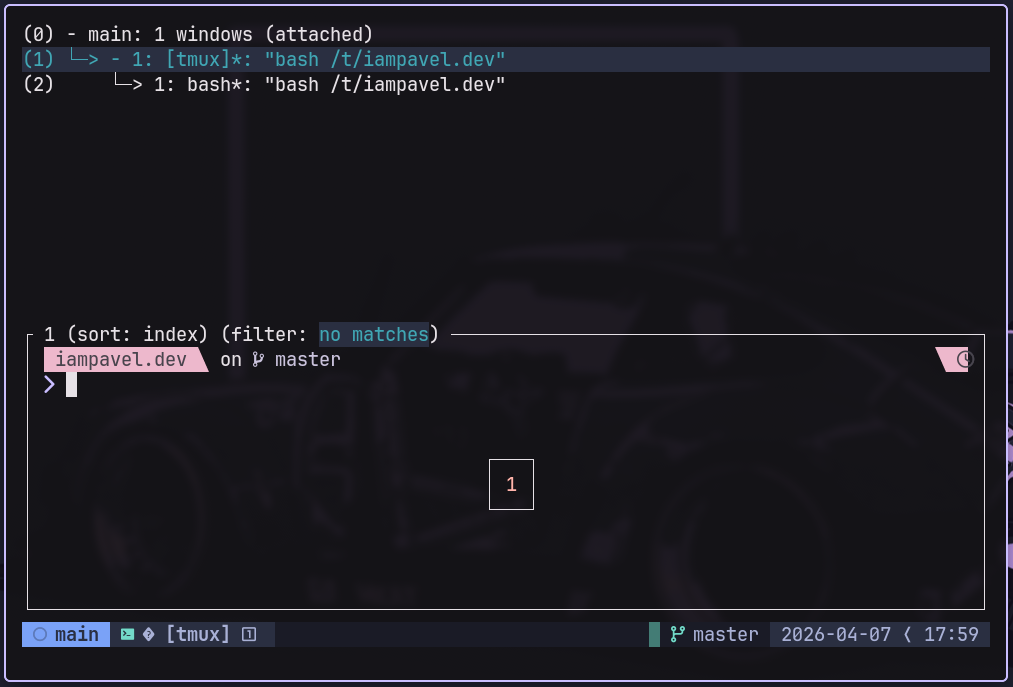
I remap the prefix to Ctrl-a in my .tmux.conf because I find it more comfortable:
unbind C-b
set -g prefix C-a
bind C-a send-prefixunbind C-b
set -g prefix C-a
bind C-a send-prefix
Now ta gets me into tmux, and Ctrl-a d detaches. I never think about it.
Sysadmin Functions I Keep Around
These aren't daily drivers, but when you need them, you really need them. I keep them commented out in my .bashrc and uncomment when I'm managing servers.
Disk Space Alert
This function checks if any filesystem is above a threshold and prints a warning. I run it from cron on smaller VPS instances where disk space sneaks up on you:
# filename: ~/.bashrc
diskalert() {
    local threshold="${1:-80}"
    local usage

    df -h | awk 'NR>1 {
        gsub(/%/,"",$5)
        if ($5 > threshold) {
            print "WARNING: " $6 " is at " $5 "% capacity (" $3 " used of " $2 ")"
        }
    }' threshold="$threshold"
}# filename: ~/.bashrc
diskalert() {
    local threshold="${1:-80}"
    local usage

    df -h | awk 'NR>1 {
        gsub(/%/,"",$5)
        if ($5 > threshold) {
            print "WARNING: " $6 " is at " $5 "% capacity (" $3 " used of " $2 ")"
        }
    }' threshold="$threshold"
}
Usage: diskalert 85 warns on anything over 85% full. If you call it without arguments, it defaults to 80%.
The output looks like:
WARNING: /var/log is at 94% capacity (8.2G used of 8.8G)
WARNING: /home is at 87% capacity (42G used of 49G)WARNING: /var/log is at 94% capacity (8.2G used of 8.8G)
WARNING: /home is at 87% capacity (42G used of 49G)
Postgres Database Dump
I never remember the pg_dump flags, and I always forget to create the backup directory first. This function handles both:
# filename: ~/.bashrc
pgdump() {
    local db_name="$1"
    local backup_dir="${2:-./backups}"
    local timestamp
    timestamp=$(date +%Y%m%d_%H%M%S)

    if [ -z "$db_name" ]; then
        echo "Usage: pgdump <database_name> [backup_directory]"
        echo "Available databases:"
        psql -l | grep "^s+w" | grep -v "List|Name" | awk '{print $1}'
        return 1
    fi

    mkdir -p "$backup_dir"
    local outfile="${backup_dir}/${db_name}_${timestamp}.dump"

    echo "Dumping '$db_name' to $outfile..."
    if pg_dump -Fc -f "$outfile" "$db_name"; then
        echo "Backup complete: $(ls -lh "$outfile" | awk '{print $5}')"
    else
        echo "Backup failed. Check that database '$db_name' exists and you have permissions."
        rm -f "$outfile"
        return 1
    fi
}# filename: ~/.bashrc
pgdump() {
    local db_name="$1"
    local backup_dir="${2:-./backups}"
    local timestamp
    timestamp=$(date +%Y%m%d_%H%M%S)

    if [ -z "$db_name" ]; then
        echo "Usage: pgdump <database_name> [backup_directory]"
        echo "Available databases:"
        psql -l | grep "^s+w" | grep -v "List|Name" | awk '{print $1}'
        return 1
    fi

    mkdir -p "$backup_dir"
    local outfile="${backup_dir}/${db_name}_${timestamp}.dump"

    echo "Dumping '$db_name' to $outfile..."
    if pg_dump -Fc -f "$outfile" "$db_name"; then
        echo "Backup complete: $(ls -lh "$outfile" | awk '{print $5}')"
    else
        echo "Backup failed. Check that database '$db_name' exists and you have permissions."
        rm -f "$outfile"
        return 1
    fi
}
Run pgdump with no arguments and it lists available databases. Run pgdump myapp and it creates backups/myapp_20250407_143022.dump. The -Fc flag creates a PostgreSQL-native compressed format that pg_restore can read. Don't add extra compression - the custom format is already compressed, and double-compressing actually makes restores slower because pg_restore can't seek through a gzip stream for parallel restoration.
I learned the hard way that plain SQL dumps take forever to restore on large databases. The custom format is the only way to go - it's both smaller and faster to restore than plain SQL with gzip.
Restoring: Use pg_restore -d myapp myapp_20250407_143022.dump
List All Cron Jobs
Cron jobs hide in more places than you'd expect. This function finds them all:
# filename: ~/.bashrc
allcron() {
    echo "=== System crontab ==="
    if [ -r /etc/crontab ]; then
        cat /etc/crontab | grep -v '^#' | grep -v '^$'
    else
        echo "Cannot read system crontab"
    fi

    echo -e "\n=== User crontabs ==="
    for user in $(cut -d: -f1 /etc/passwd); do
        local crons
        crons=$(crontab -u "$user" -l 2>/dev/null | grep -v '^#' | grep -v '^$')
        if [ -n "$crons" ]; then
            echo -e "\n[$user]"
            echo "$crons"
        fi
    done

    echo -e "\n=== Cron directories ==="
    for dir in /etc/cron.d /etc/cron.daily /etc/cron.hourly /etc/cron.weekly /etc/cron.monthly; do
        if [ -d "$dir" ] && [ "$(ls -A "$dir" 2>/dev/null)" ]; then
            echo -e "\n[$dir]"
            ls -la "$dir" | tail -n +4
        fi
    done
}# filename: ~/.bashrc
allcron() {
    echo "=== System crontab ==="
    if [ -r /etc/crontab ]; then
        cat /etc/crontab | grep -v '^#' | grep -v '^$'
    else
        echo "Cannot read system crontab"
    fi

    echo -e "\n=== User crontabs ==="
    for user in $(cut -d: -f1 /etc/passwd); do
        local crons
        crons=$(crontab -u "$user" -l 2>/dev/null | grep -v '^#' | grep -v '^$')
        if [ -n "$crons" ]; then
            echo -e "\n[$user]"
            echo "$crons"
        fi
    done

    echo -e "\n=== Cron directories ==="
    for dir in /etc/cron.d /etc/cron.daily /etc/cron.hourly /etc/cron.weekly /etc/cron.monthly; do
        if [ -d "$dir" ] && [ "$(ls -A "$dir" 2>/dev/null)" ]; then
            echo -e "\n[$dir]"
            ls -la "$dir" | tail -n +4
        fi
    done
}
This shows every cron job on the system: user crontabs, system crontab, and files in /etc/cron.* directories. It requires root or sudo to see other users' crontabs, but works fine for your own user without elevation.
Here's what caught me off guard the first time I ran this: cron jobs can be hiding in /etc/cron.d/ as individual files, not just in user crontabs. I spent an hour debugging a mysterious nightly job before realizing it was in /etc/cron.d/some-legacy-app.
Warning: On systems with hundreds of users, this function is slow because it checks each one individually. If you know you only care about specific users, hardcode them instead of looping through /etc/passwd.
Copy to Clipboard (Cross-Platform)
The clipboard command is pbcopy on macOS and xclip or xsel on Linux. I can never remember which one I have installed, and I switch between Mac and Linux machines constantly. This function just works:
# filename: ~/.bashrc
copy() {
    local input="${1:-$(cat)}"

    if command -v pbcopy &>/dev/null; then
        echo -n "$input" | pbcopy
    elif command -v wl-copy &>/dev/null; then
        echo -n "$input" | wl-copy
    elif command -v xclip &>/dev/null; then
        echo -n "$input" | xclip -selection clipboard
    elif command -v xsel &>/dev/null; then
        echo -n "$input" | xsel --clipboard --input
    else
        echo "No clipboard utility found. Install wl-copy, xclip, or xsel." >&2
        return 1
    fi
}# filename: ~/.bashrc
copy() {
    local input="${1:-$(cat)}"

    if command -v pbcopy &>/dev/null; then
        echo -n "$input" | pbcopy
    elif command -v wl-copy &>/dev/null; then
        echo -n "$input" | wl-copy
    elif command -v xclip &>/dev/null; then
        echo -n "$input" | xclip -selection clipboard
    elif command -v xsel &>/dev/null; then
        echo -n "$input" | xsel --clipboard --input
    else
        echo "No clipboard utility found. Install wl-copy, xclip, or xsel." >&2
        return 1
    fi
}
Usage examples:
# Copy file contents
cat ~/.ssh/id_rsa.pub | copy

# Copy command output
copy "$(pwd)"

# Copy with argument directly
copy "some text to clipboard"# Copy file contents
cat ~/.ssh/id_rsa.pub | copy

# Copy command output
copy "$(pwd)"

# Copy with argument directly
copy "some text to clipboard"
I use this most often for copying SSH public keys when setting up new servers. No more "select all, copy, paste, oh wait I missed a character".
Network Debugging
I always forget how to check my public IP or which ports are listening. These functions save me from googling the same commands every month:
# filename: ~/.bashrc
myip() {
    curl -s https://ipinfo.io/ip
}

ips() {
    ip -br -c addr show
}

ports() {
    local port="$1"
    if [ -n "$port" ]; then
        ss -tlnp | grep ":$port"
    else
        ss -tlnp
    fi
}

dns() {
    dig +short "$1"
}# filename: ~/.bashrc
myip() {
    curl -s https://ipinfo.io/ip
}

ips() {
    ip -br -c addr show
}

ports() {
    local port="$1"
    if [ -n "$port" ]; then
        ss -tlnp | grep ":$port"
    else
        ss -tlnp
    fi
}

dns() {
    dig +short "$1"
}
myip shows your public IP. Useful when you're on VPN and need to verify exit node location.
ips prints all network interfaces with their IPs in a readable format. The -br flag gives brief output, -c adds color coding:
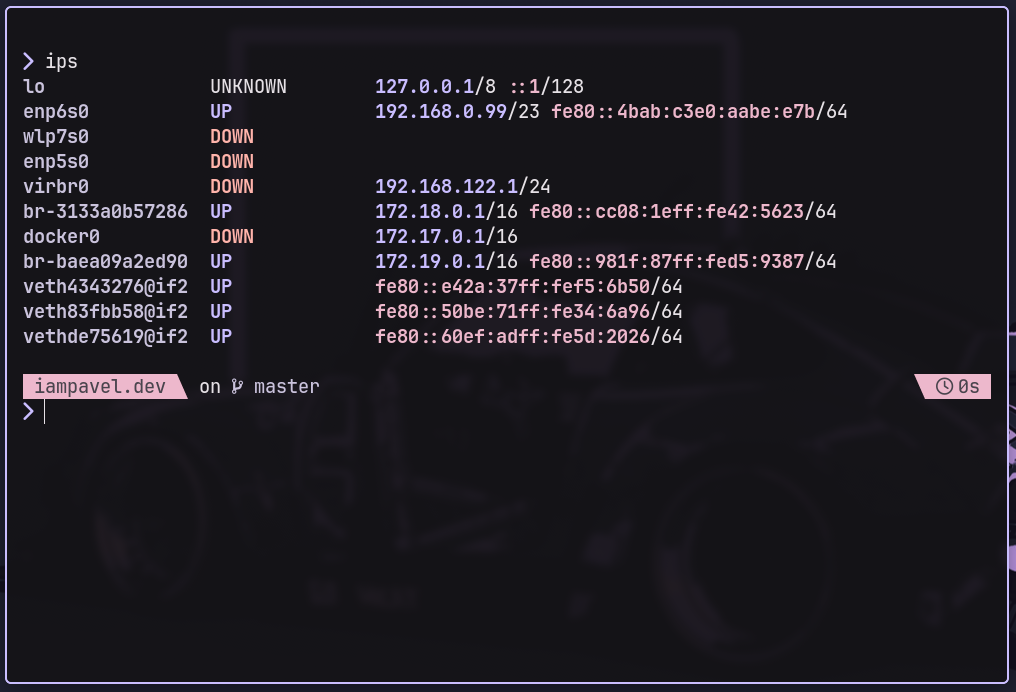
lo               UNKNOWN        127.0.0.1/8 ::1/128
eth0             UP             192.168.1.42/24 fe80::42/64
docker0          DOWN           172.17.0.1/16lo               UNKNOWN        127.0.0.1/8 ::1/128
eth0             UP             192.168.1.42/24 fe80::42/64
docker0          DOWN           172.17.0.1/16
ports lists listening TCP ports with process info. Pass a port number to filter:
ports 3000 # Show only what's using port 3000ports 3000 # Show only what's using port 3000
dns does a quick DNS lookup without the verbose dig output:
dns google.com # 142.250.80.46dns google.com # 142.250.80.46
Comments